


Product Tutorial | How to Register for a Payment Account?
The Transfer-In feature of the KPay Business Account allows you to transfer funds from other bank accounts to your KPay Business Account anytime. Ensure sufficient account balance to seamlessly complete all payment transactions. Whether it’s paying local bills, supplier orders, international remittances, or employee salaries, you can handle transactions flexibly without balance limitations!
Eligible users: merchants who have activated a KPay Business Account.
How to Register for a Payment Account via KPay App?
| Note: merchants must first activate the payroll management feature to use the transfer-in function. |
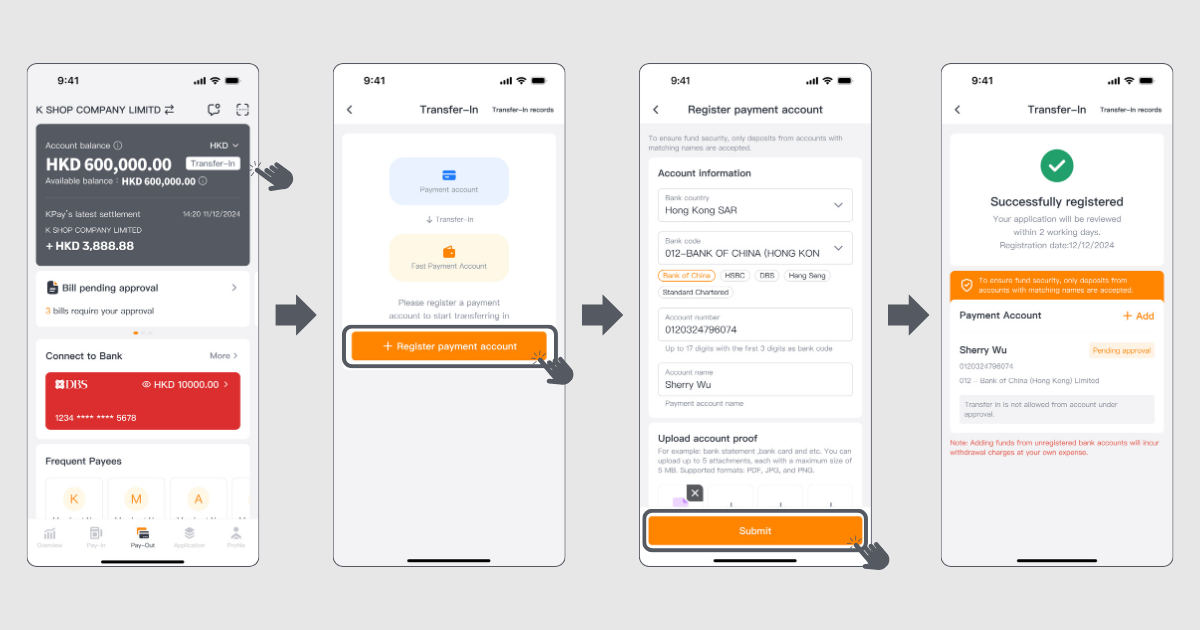
Step 1: Log in to KPay App and navigate to the “Pay-Out” tab. In the account balance overview, tap “Transfer-In.”
Step 2: On the “Transfer-In” page, tap “+ Register payment account.”
Step 3: Follow the instructions to input the required account details, upload the account proofs, and tap “Submit.”
Step 4: Once the information is successfully submitted and approved, a “Successfully registered” message will be displayed. The account approval process takes approximately two business days.
What to Do if Payment Account Registration Fails in KPay App?
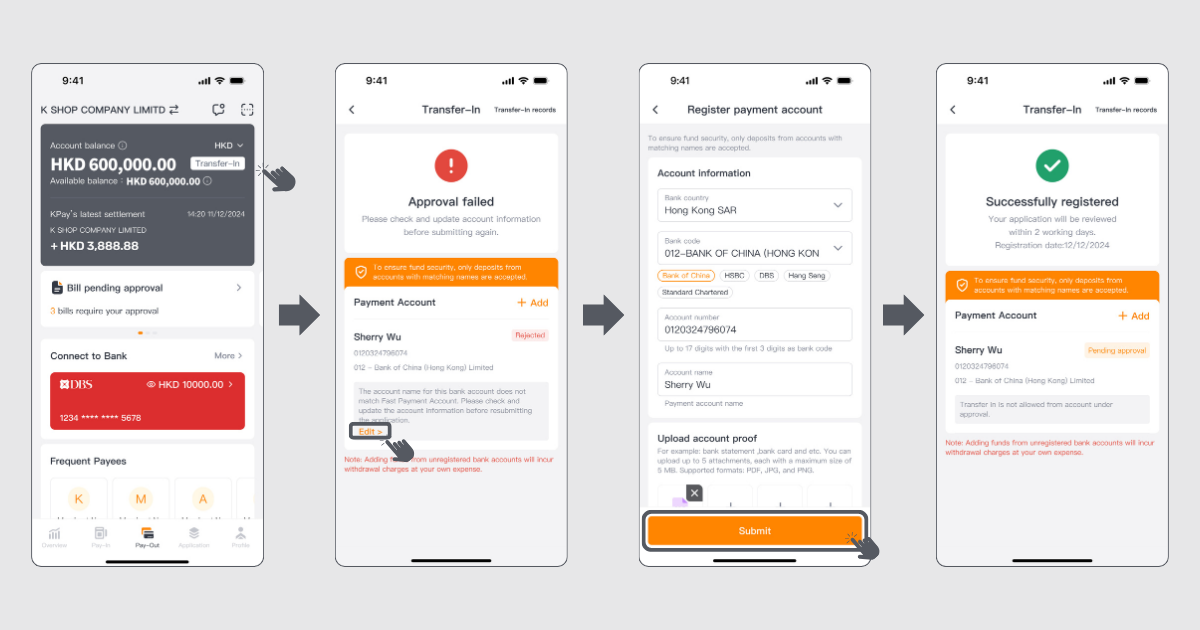
Step 1: Log in to KPay App and go to the “Pay-Out” tab. In the account balance overview, tap “Transfer-In”.
Step 2: If the payment account registration fails, a “Approval failed” message will appear. Follow the instructions in the review message and click “Edit” to modify the information and resubmit the account registration request.
Step 3: The account approval process takes approximately two business days. Once the information is successfully submitted and approved, a “Successfully registered” message will be displayed.
How to Add Funds into Your KPay Business Account?
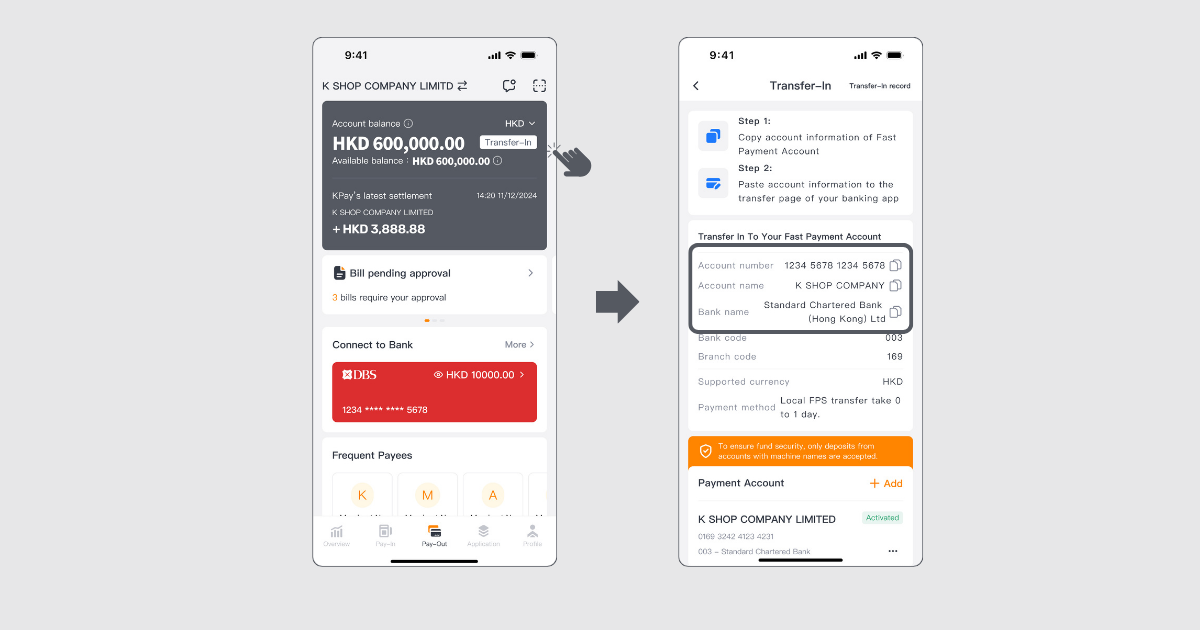
Step 1: Log in to KPay App, navigate to the “Pay-Out” page, and in the Account balance overview, tap “Transfer-In”.
Step 2: Copy the KPay Business Account details, then input or paste the details on your bank account’s transfer page, and transfer the funds to your KPay Business Account.
How to Register a Payment Account via Pay-in and Pay-out Management Platform?
| Note: merchants must first activate the payroll management feature to use the transfer-in function. |
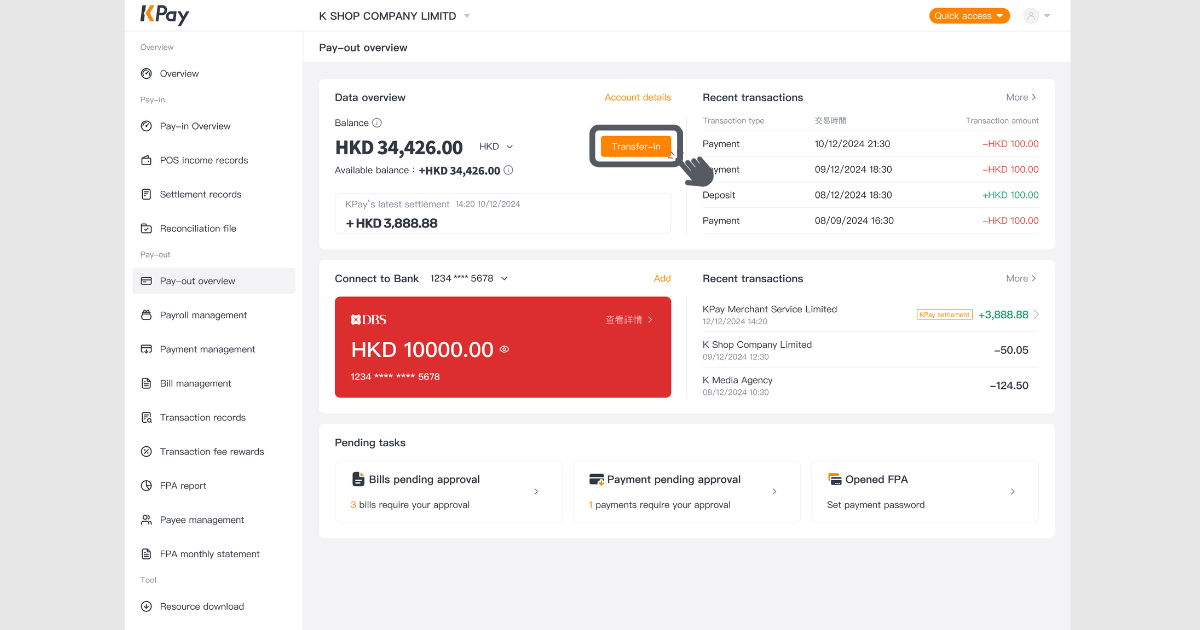
Step 1: Log in to pay-in and pay-out management platform, on the “Pay-Out overview” page, tap “Transfer-In” in the data overview section.
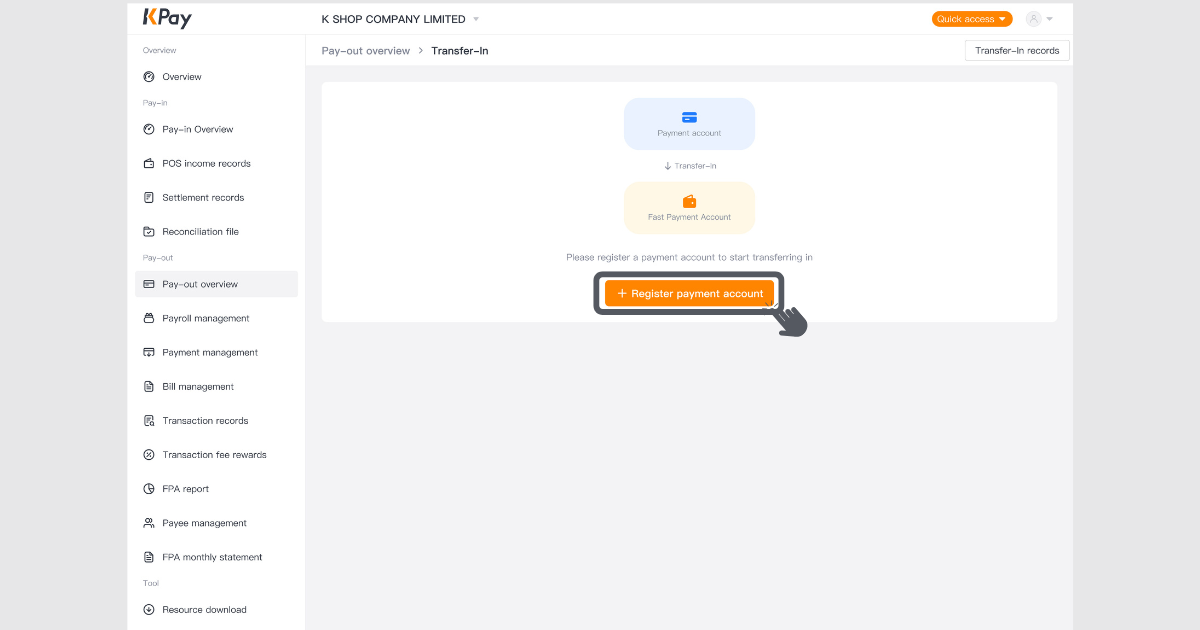
Step 2: On the “Transfer-In” page, tap “+ Register payment account”.
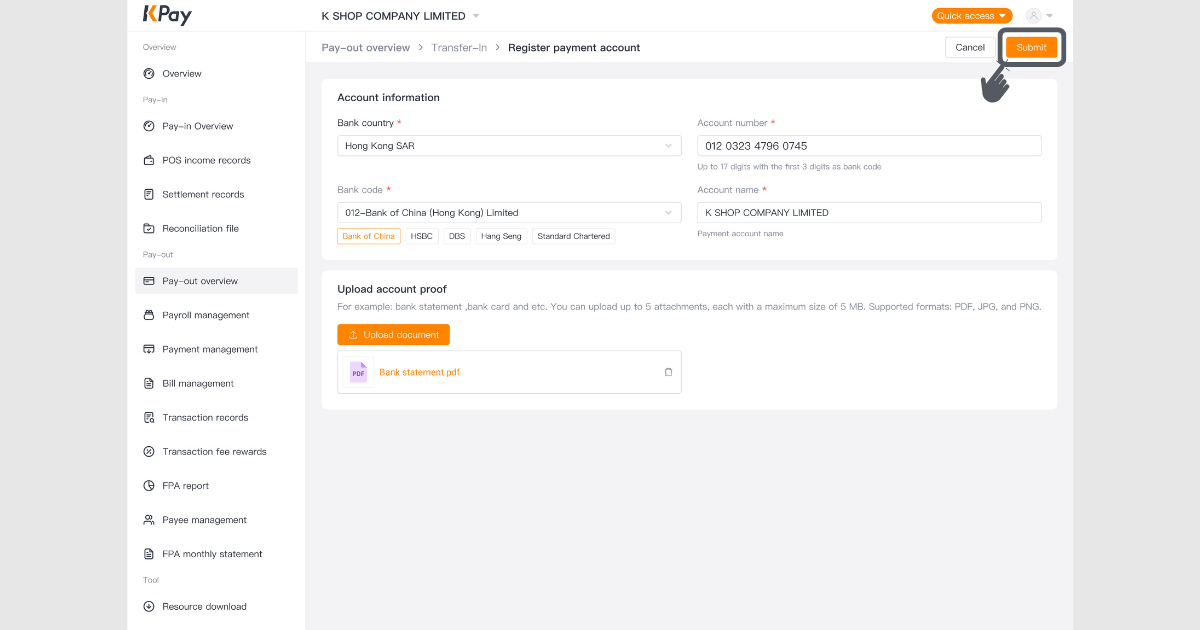
Step 3: Follow the instructions to input the required account details, upload the account proofs, and tap “Submit.”
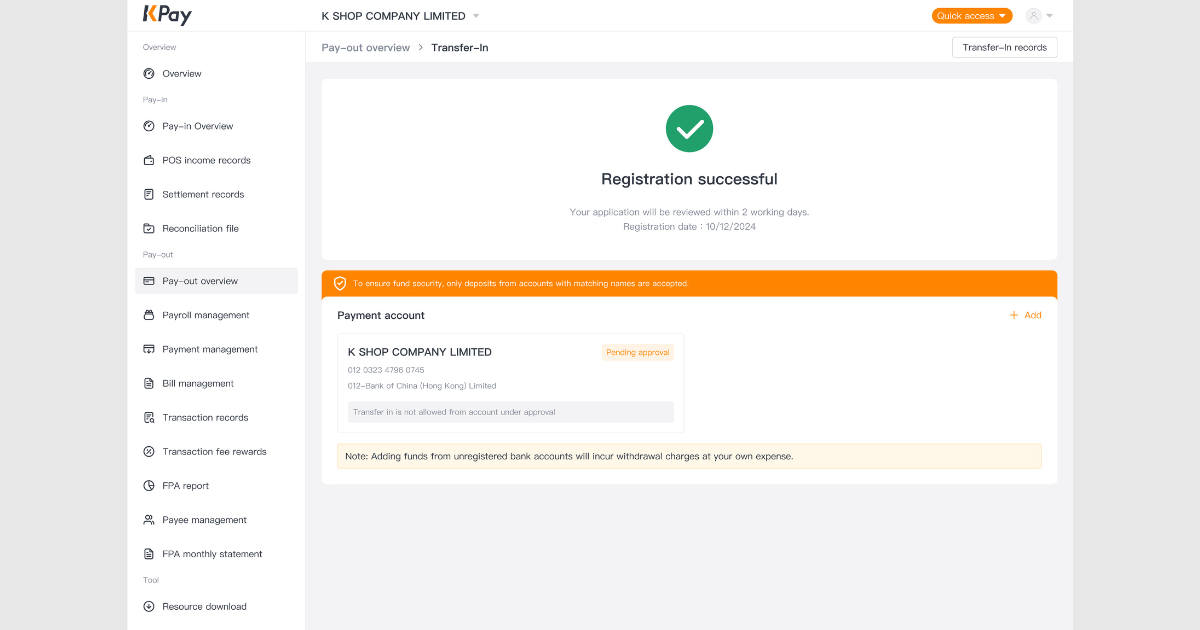
Step 4: Once the information is successfully submitted and approved, a “Successfully registered” message will be displayed. The account approval process takes approximately two business days.
What to Do if Payment Account Registration Fails in the Pay-in and Pay-out Management Platform?
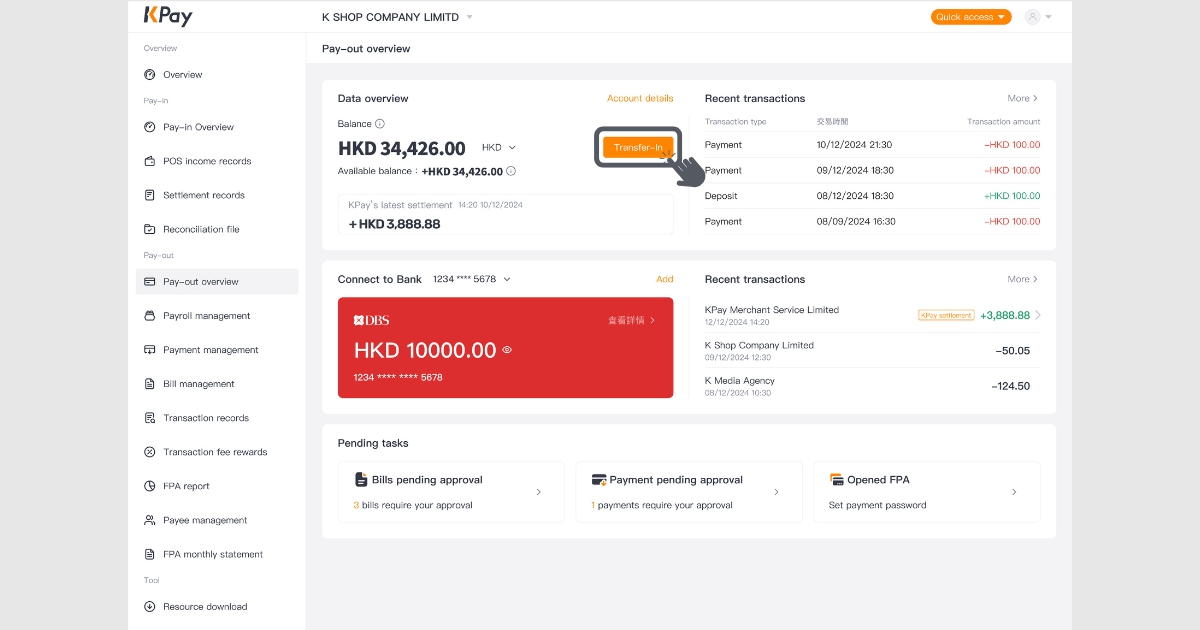
Step 1: Log in to pay-in and pay-out management platform, on the “Pay-Out overview” page, tap “Transfer-In” in the data overview section.
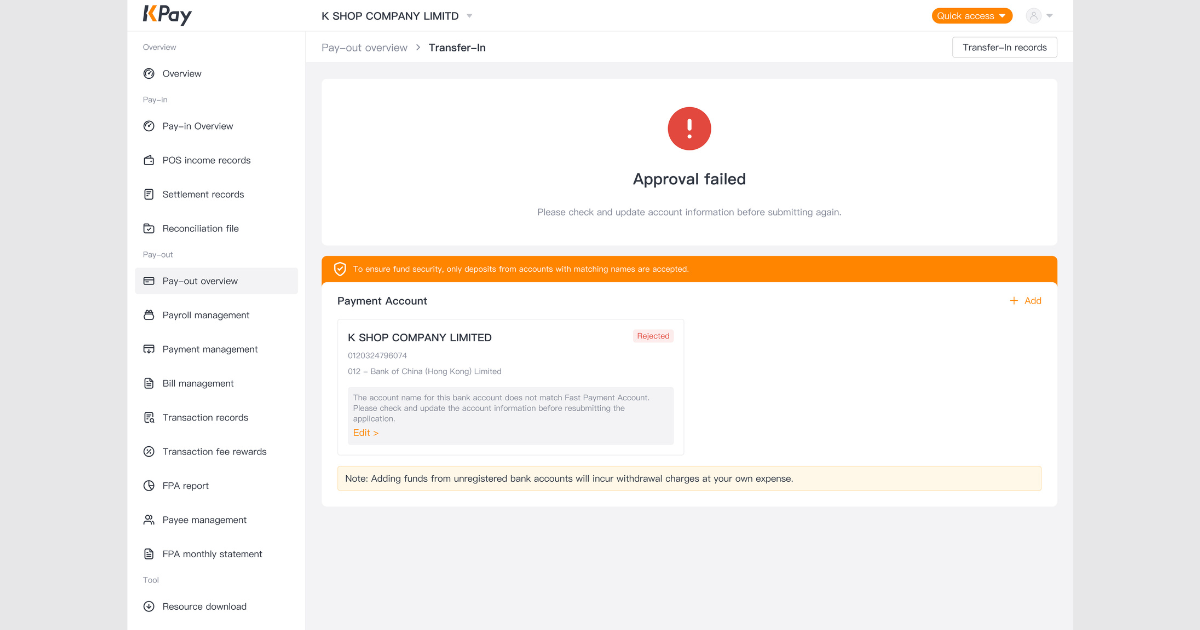
Step 2: If the payment account registration fails, a “Approval failed” message will appear. Follow the instructions in the review message and click “Edit” to modify the information and resubmit the account registration request.
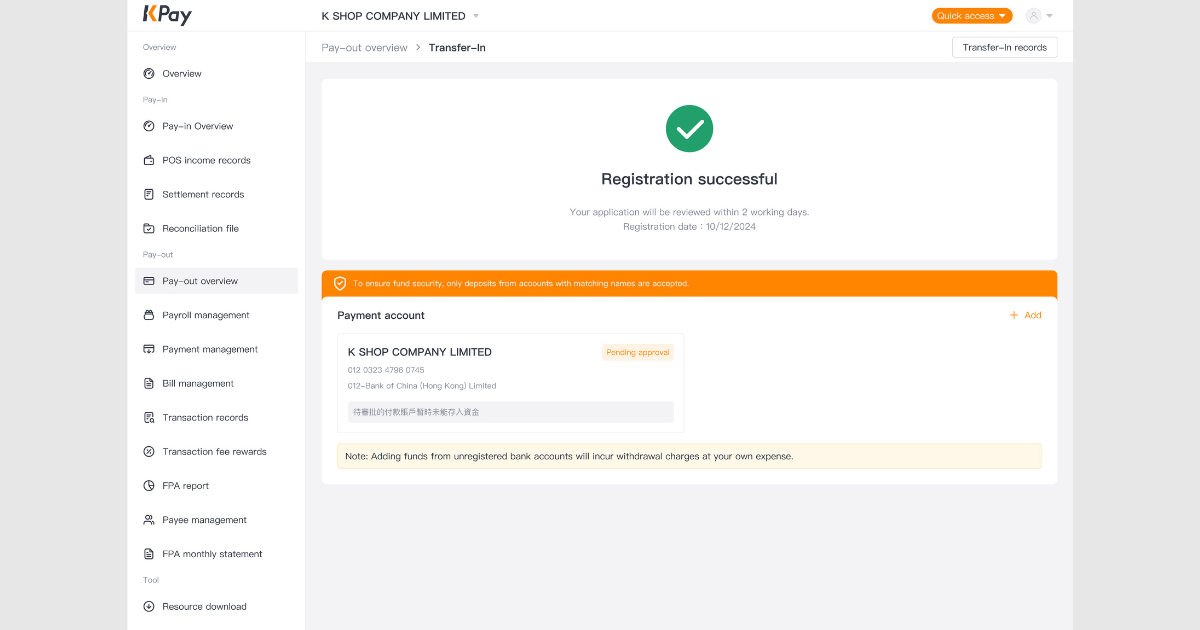
Step 3: The account approval process takes approximately two business days. Once the information is successfully submitted and approved, a “Successfully registered” message will be displayed.
How to Add Funds into Your KPay Business Account?
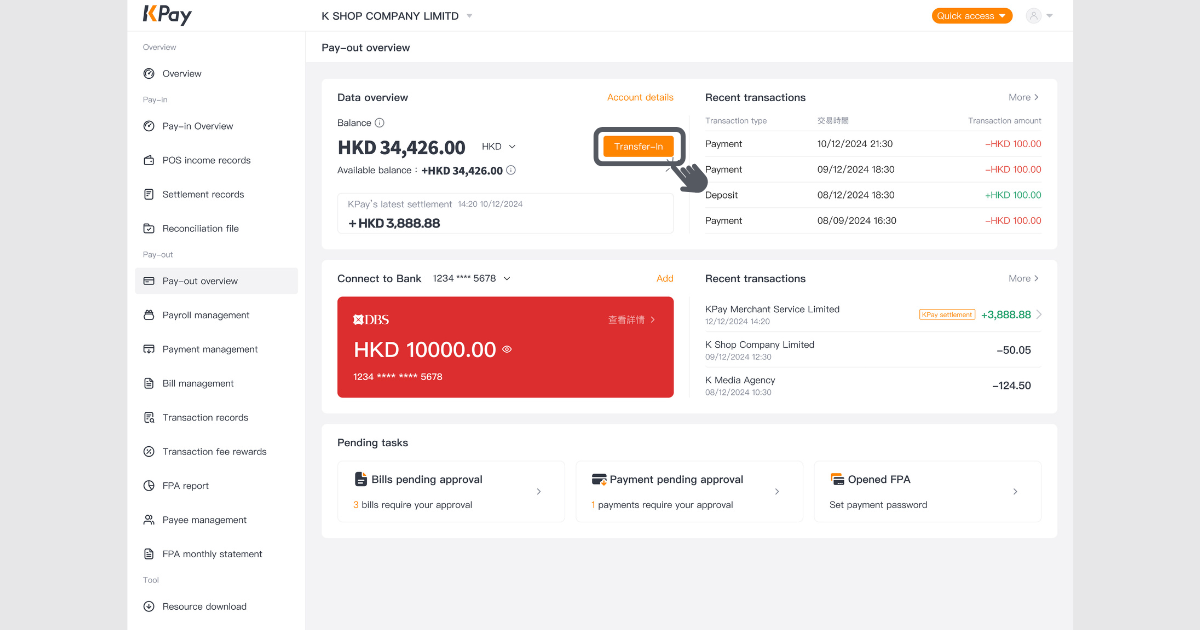
Step 1: Log in to KPay App, navigate to the “Pay-Out” page, and in the KPay Business Account overview, tap “Transfer-in”.
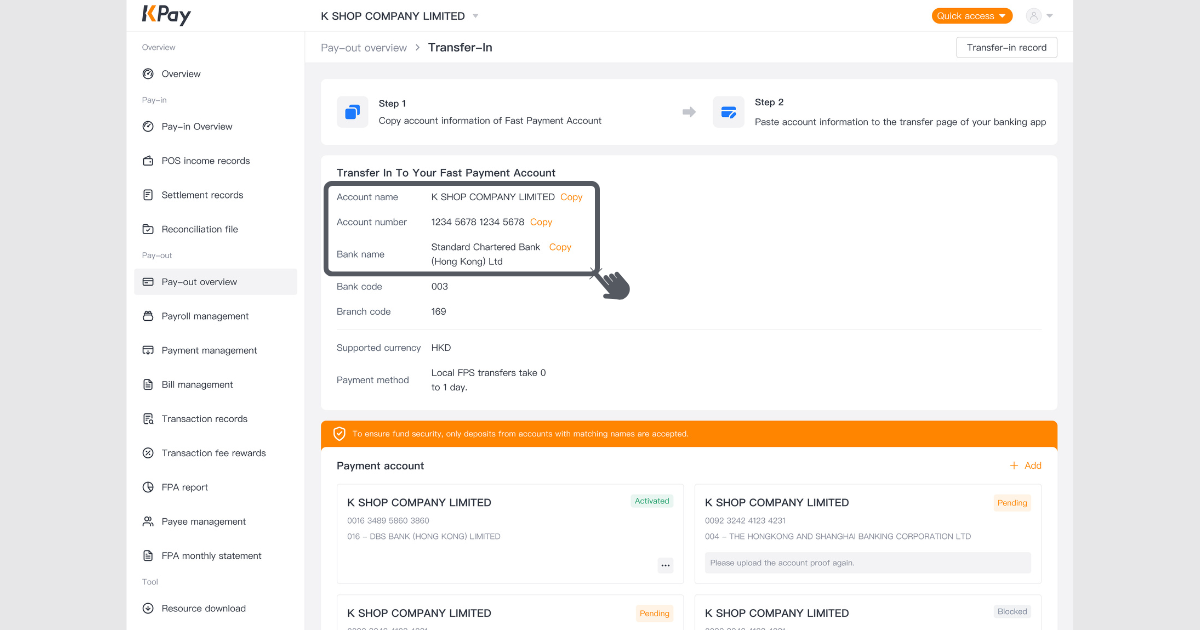
Step 2: Copy the KPay Business Account details, then input or paste the details on your bank account’s transfer page, and transfer the funds to your KPay Business Account.
If you have any questions during the use of the product, feel free to contact our customer service team at 3706-7828 during office hours (Monday to Sunday, 10 AM-10 PM). We are happy to assist you.